
The Broker and Agents are background processes that run as server-side activities for your application. Together, they form your Transaction Server.
What is Transaction Server – A Transaction Server acts as an Application Server (that handle the server-side activity) to run our source’s compiled objects (,r) ; that interacts with Data Sources & renders the response to client’s request .
Note- Any time we start an instance of Transaction Server, our Broker is also started implicitly.
Broker acts as a pool of Agents that maintains thier state and ensure that Agents are available to serve client’s requests . It is essential to note that starting the broker would also start the agents.
How do we identify the broker ?
Brokers can be configured with a specific name of your choice. As a background process, it has its own Process ID.
Configuration –
We can configure the broker either using OEM or ubroker.properties file .
Note – Below configurations and commands are performed for OpenEdge (version11.7.).
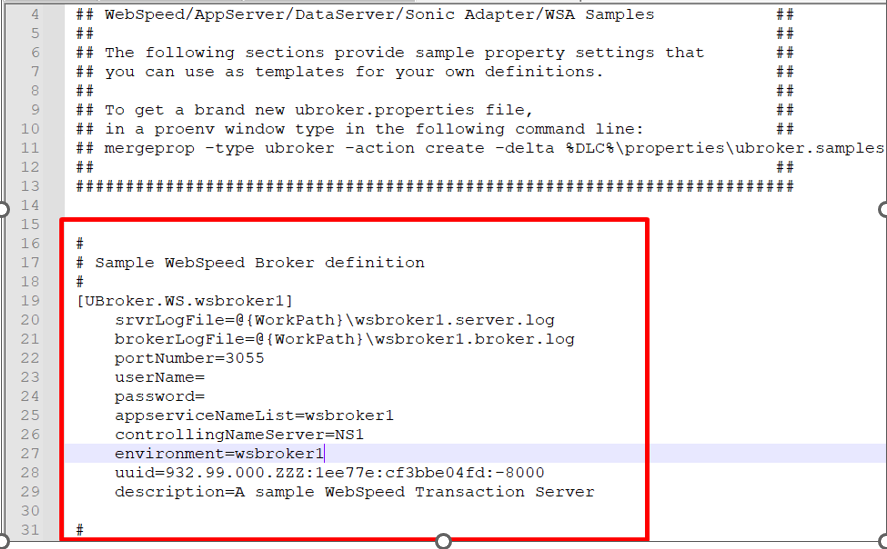
- ubroker.properties file – Please refer below image where we tried to configure the broker with the minimum needed settings . @Workpath will be your working directory , Portnumber – port on which broker process would listen to , broker name – wsbroker1 , description .
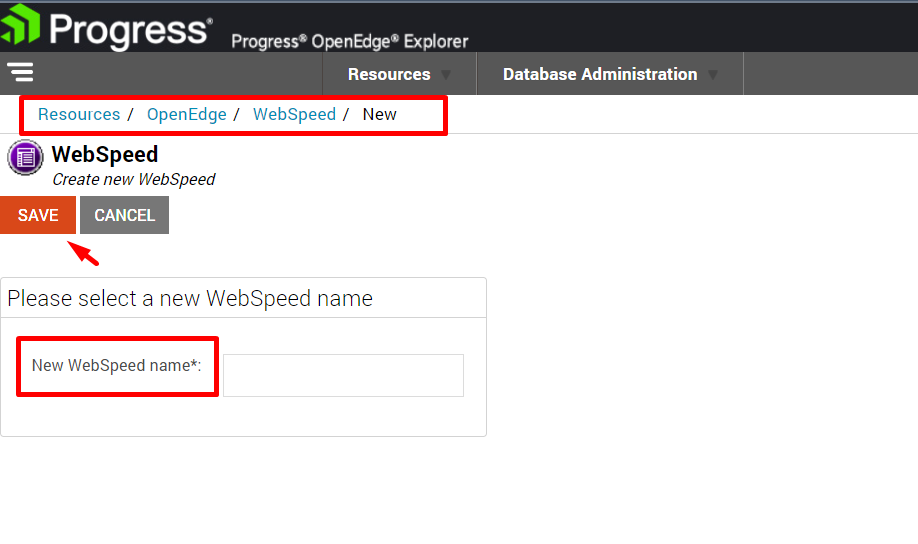
2) We can also use OEM for configuration – We can either create new or configure existing WebSpeed broker using below path from OEM
Create a New Broker Instance –
Configure the created broker –
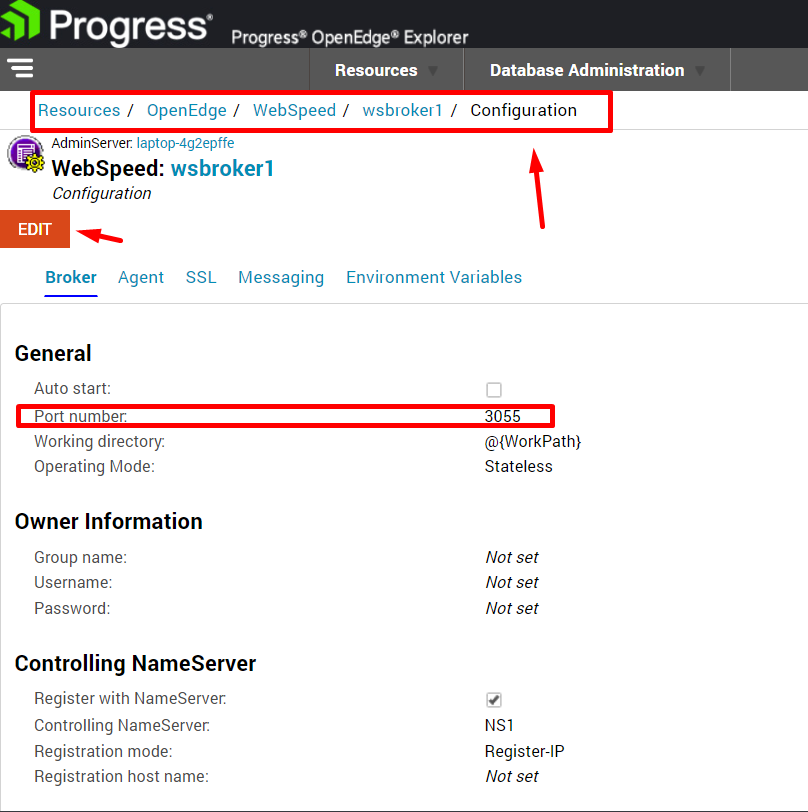
Now we have configured the broker . Lets start the broker using either OEM or Pronenv .
State after we started the broker using OEM –
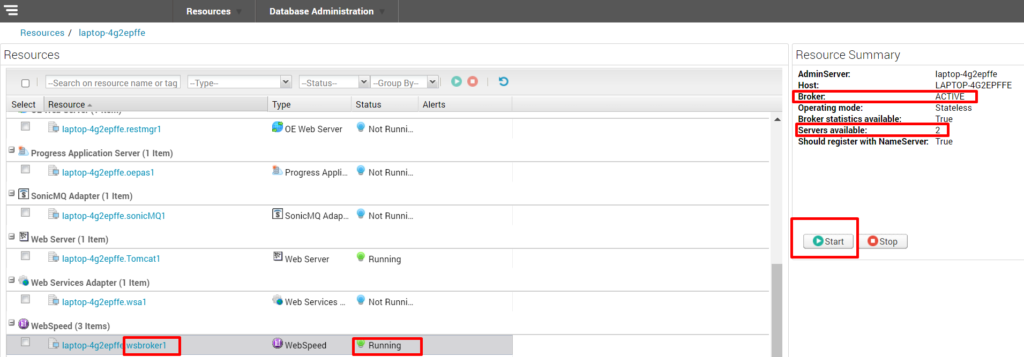
As we can see above , there are two agents available and broker is running at port 3055 .
Lets also use Proenv –
WTBMAN –
WTBMAN is a command that allows us to start the broker instance locally or remotely .
Start Proenv and type below command to run the broker locally .
wtbman -name wsbroker1 -startLets see how we did it –
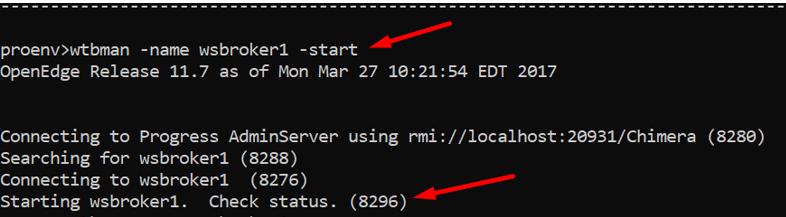
Wsbroker1 appears to be starting, but we cannot be certain of its status unless we validate if it is running.
USE WTBMAN again to query the status of Broker –
wtbman -name wsbroker1 -query
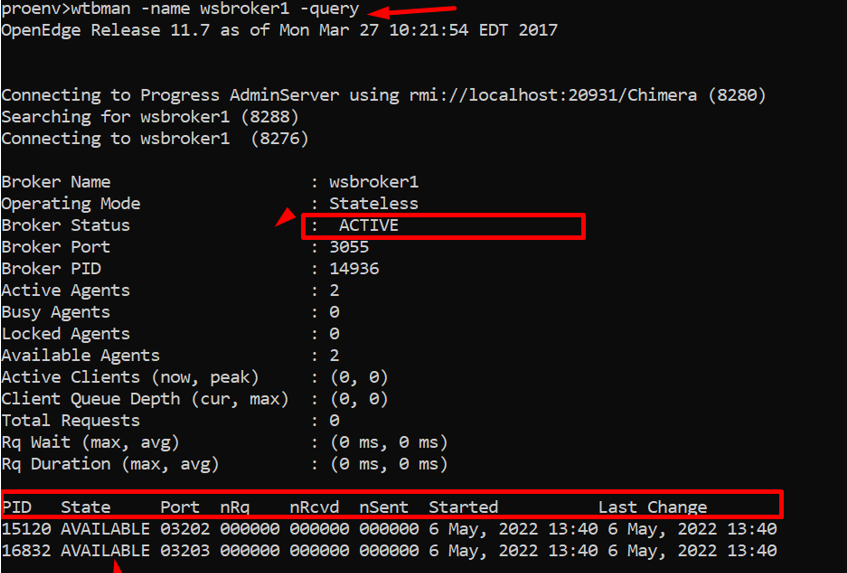
We can note below key information –
- Broker Port – 3055
- Available Agents for Broker – 2
- Name of Broker
- Broker PID
- State of Agents (ProcessID & Port numbers )
As we can see above – starting of broker has also started the Agents . Above , we have 2 agents available for serving client requests .
Important –
Operating Mode of Broker – Observe that the broker operating mode is Stateless. It implies that our broker (or a serving agent) wouldn’t remain tied to the client’s WebRequest.
Having said that, once the request is served, state-less agents do not maintain the request context (in other words, they do not remain persistent/locked to a particular web-client or browser).
Troubleshoot –
In case – if at all broker do not start up – trace the logs in wsbroker1.broker.log (broker name – wsbroker1) . The location of file is your default working directory (or if you have manually configured using ubroker.properties file).
Hopefully you have gained a greater understanding of WebSpeed after reading this post, and I hope you have enjoyed it as well. You are welcome to share this with others in your community, and also feel free to add your valuable comments here.
Lets build a community .
Thankyou….