
Any web application today thrives on data, which calls for storing & maintaining all pertinent information related to the app, such as employee records, transaction records, claims records, etc. Using a database, we can easily store and manage such large amounts of pertinent data with the capability to ensure data integrity and security.
sports2000 (come by default with Progress Development KIT)
For quick development, we can configure Progress DB and use sports2000 as a DB source.
What’s the location of sports2000 ?
sports2000 would be available at Progress DLC path .
See below DLC path as I have started the Proenv (Start > Programs > Progress, or OpenEdge > Proenv ) –

Lets verify.
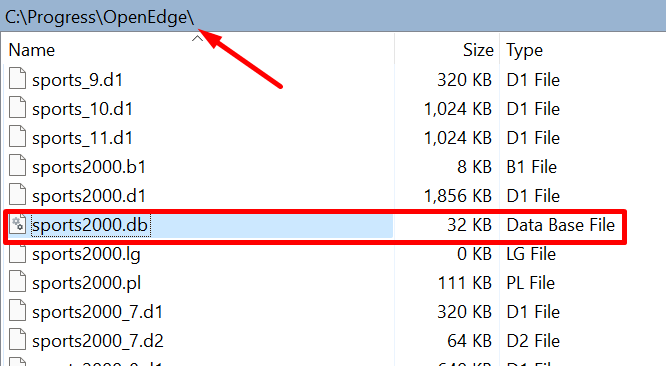
Can we directly use (sports2000) from $DLC and use it as a db server?
The answer is Straight NO . Because Progress as its standard way does not allow to connect to database in DLC (Error – 1379).
See below –

How can we use sports2000 (then , if not from DLC ) ?
PRODB –
PRODB utility creates a new OpenEdge database. The utility copies one whole source database to a new target database (source : Progress Docs ).
Lets try using prodb for our case . We will create a new database at the location of our choice from a copy of the sports2000 database .
Syntax – prodb directorypath/newdatabase directorypath/olddatabase
We will simply copy the sports2000 into our location – C:\OpenEdge\WRK\database .

Please see below – database is created in our new location .
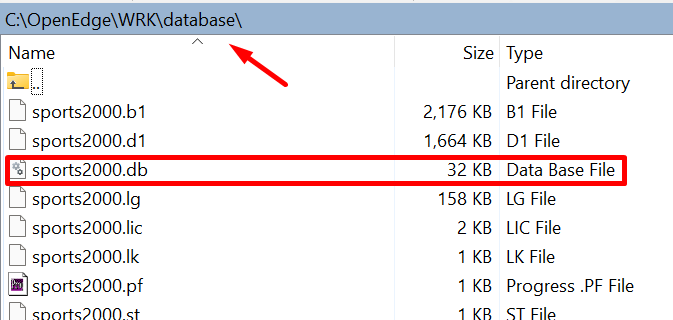
Now we can use sports2000 as a standalone db server for our application .
Connect & Start the DB
WebSpeed WorkShop would allow us to connect and start the sports2000 from our new location .
See –
Before Connecting to Any database –
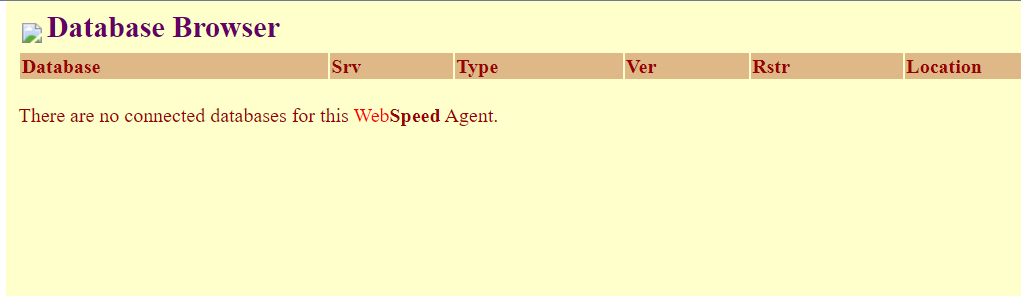
After –
- Connect database
Add db server for sports2000 to your list by clicking on DB as shown below
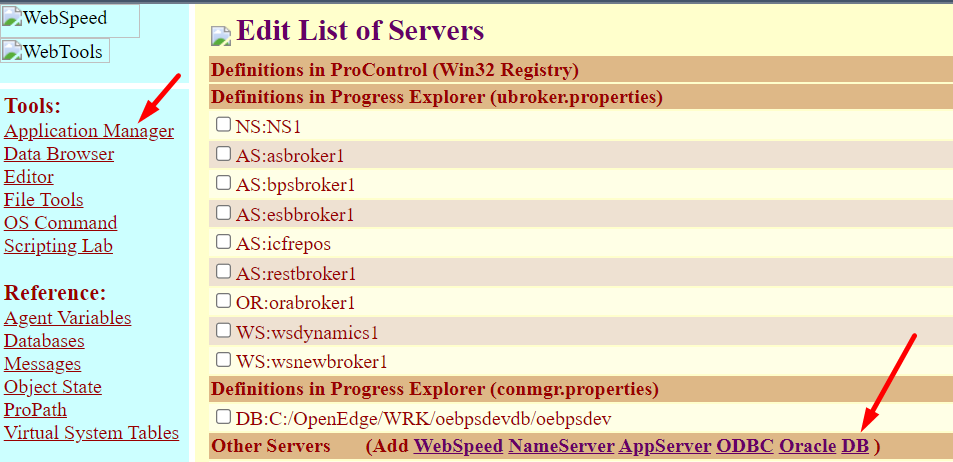
We would get a alert pop up to enter the db path .
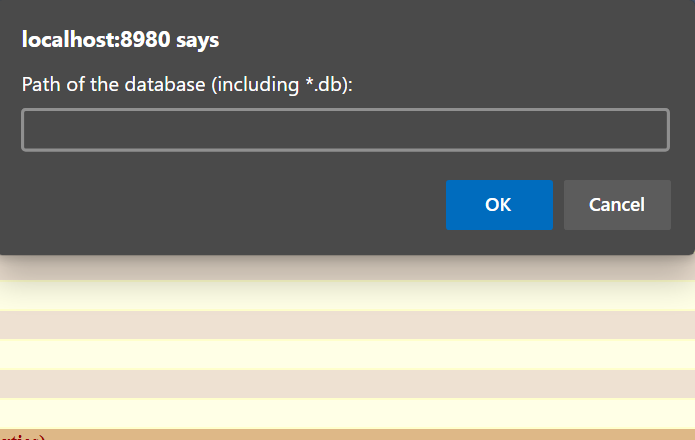
Once you enter the path of db file from your directory (and not DLC), you would get the DB server listed as below –
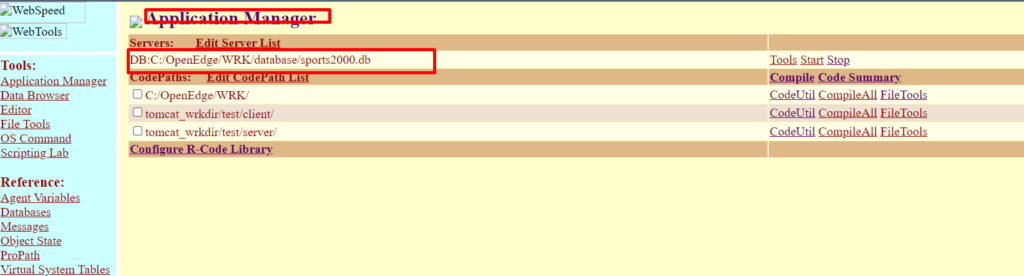
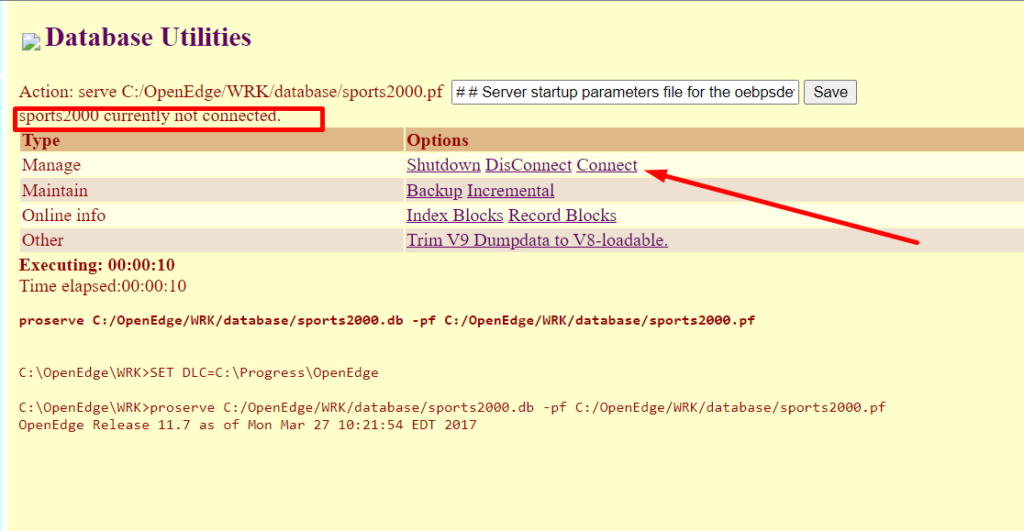
Click on START
If you get below Error as you click START , then click Connect
You would get below Successful display that our sports 2000 db is connected .
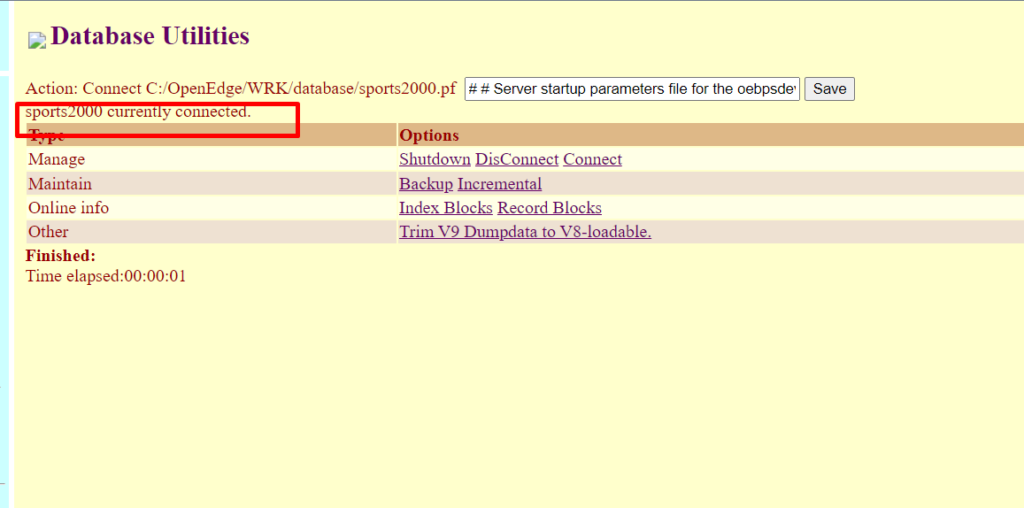
Verify further below –
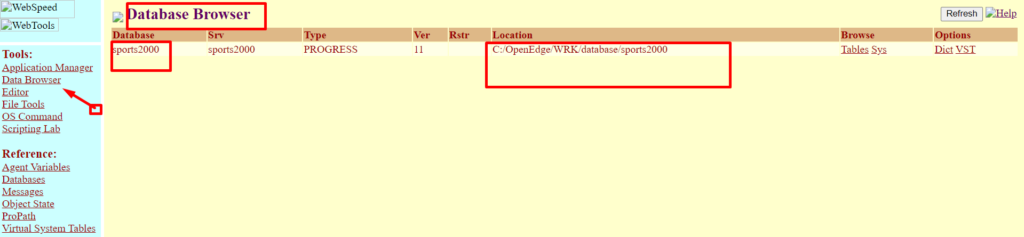
See how successfully we have been able to connect to our database for our use .
We can browse for any table information in workshop itself . See below –
Table – Benefit .
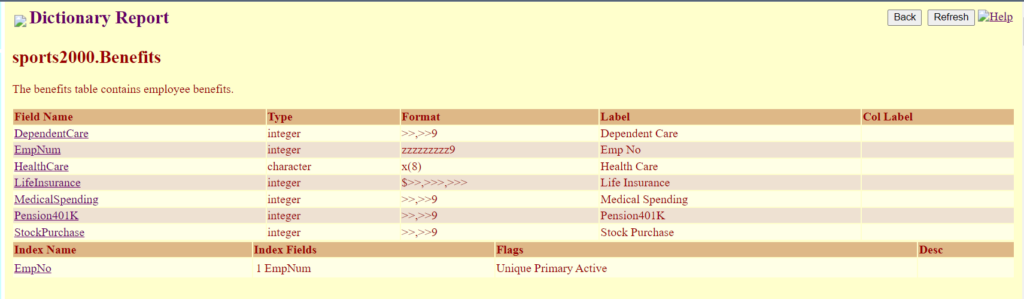
Simple Its done and ready for our work . 🙂
I hope you have enjoyed above post. You are welcome to share this with others in your community, and also feel free to add your valuable comments here.